Apple Music
This Source monitors your Apple Music listening history via the official Apple Music API and scrobbles new activity to your configured Clients.
Because of how the Apple Music API works, Multi-Scrobbler (MS) requires two different tokens to function: a Media User Token (identifies your personal account) and an Authentication Token (authorizes API access).
1. Getting a Media User Token
The mediaUserToken is required to access your recently played history. You can extract it directly from the Apple Music web app:
- Visit music.apple.com in your browser and log in.
- Open your browser's Developer Tools (usually
F12or ⌘ + ⌥ + I). - Navigate to the Application tab (Chrome/Edge) or Storage tab (Safari/Firefox).
- Expand Cookies in the left sidebar and select
https://music.apple.com. - Find the cookie named
media-user-tokenand copy its value (it typically starts with0.).
The mediaUserToken will eventually expire. If Multi-Scrobbler begins throwing authentication errors in the logs, simply repeat these steps to obtain and configure a fresh token.
2. Authentication
To authorize API access, Multi-Scrobbler requires an Authentication Token (JWT). Because the official Apple Music API is designed for developers, there are two ways to provide this token depending on your situation:
- Browser Token (Free & Most Common): Best for 99% of users. You can easily extract a temporary token from the Apple Music web player without needing an Apple Developer account.
- MusicKit Key (Requires Paid Apple Developer Account): If you happen to be enrolled in the paid Apple Developer Program ($99/year), you can provide a private key to automatically generate permanent tokens.
Choose your preferred method below:
- Browser Token (Free)
- MusicKit Key (Paid Account)
Since most users don't have a paid developer account, extracting the token from the web player is the standard approach.
Behind the scenes, the Apple Music website makes a lot of background requests, which can make finding the right token confusing. To filter out the noise and grab the exact token we need, follow the steps for your browser below:
Chrome, Edge & Firefox
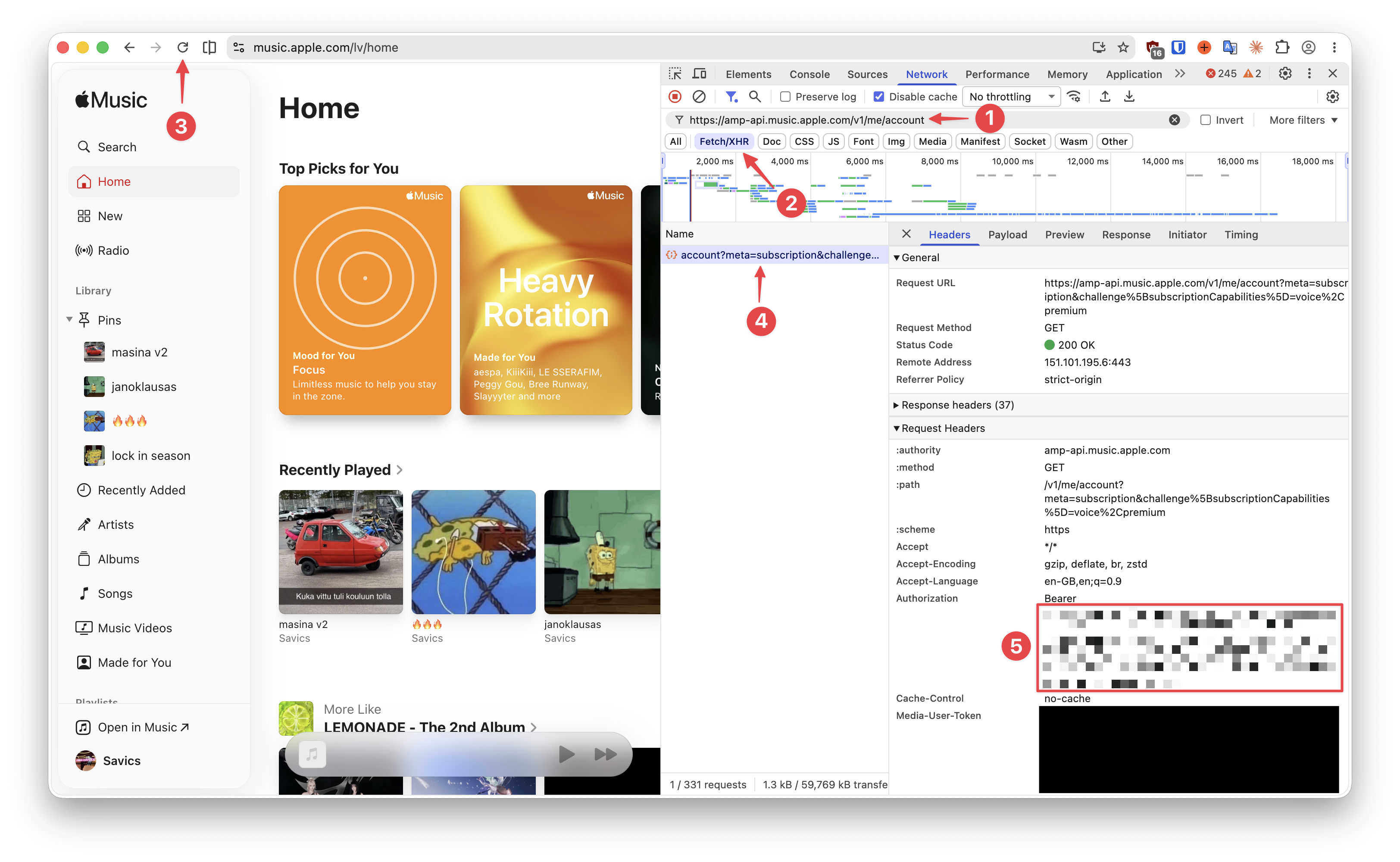
- Visit music.apple.com and log in.
- Open Developer Tools (
F12orCtrl+Shift+I/ ⌘ + ⌥ + I) and navigate to the Network tab. - In the filter box at the top left, paste exactly:
https://amp-api.music.apple.com/v1/me/account(Label 1). - Click the Fetch/XHR filter button to hide irrelevant requests (Label 2).
- Reload the page (Label 3).
- Under the "Name" column, click the request starting with
account?meta=(Label 4). - In the panel that opens, scroll down to the Request Headers section.
- Find the
authorizationheader. Copy the long string of text after theBearerprefix (Label 5).
Safari
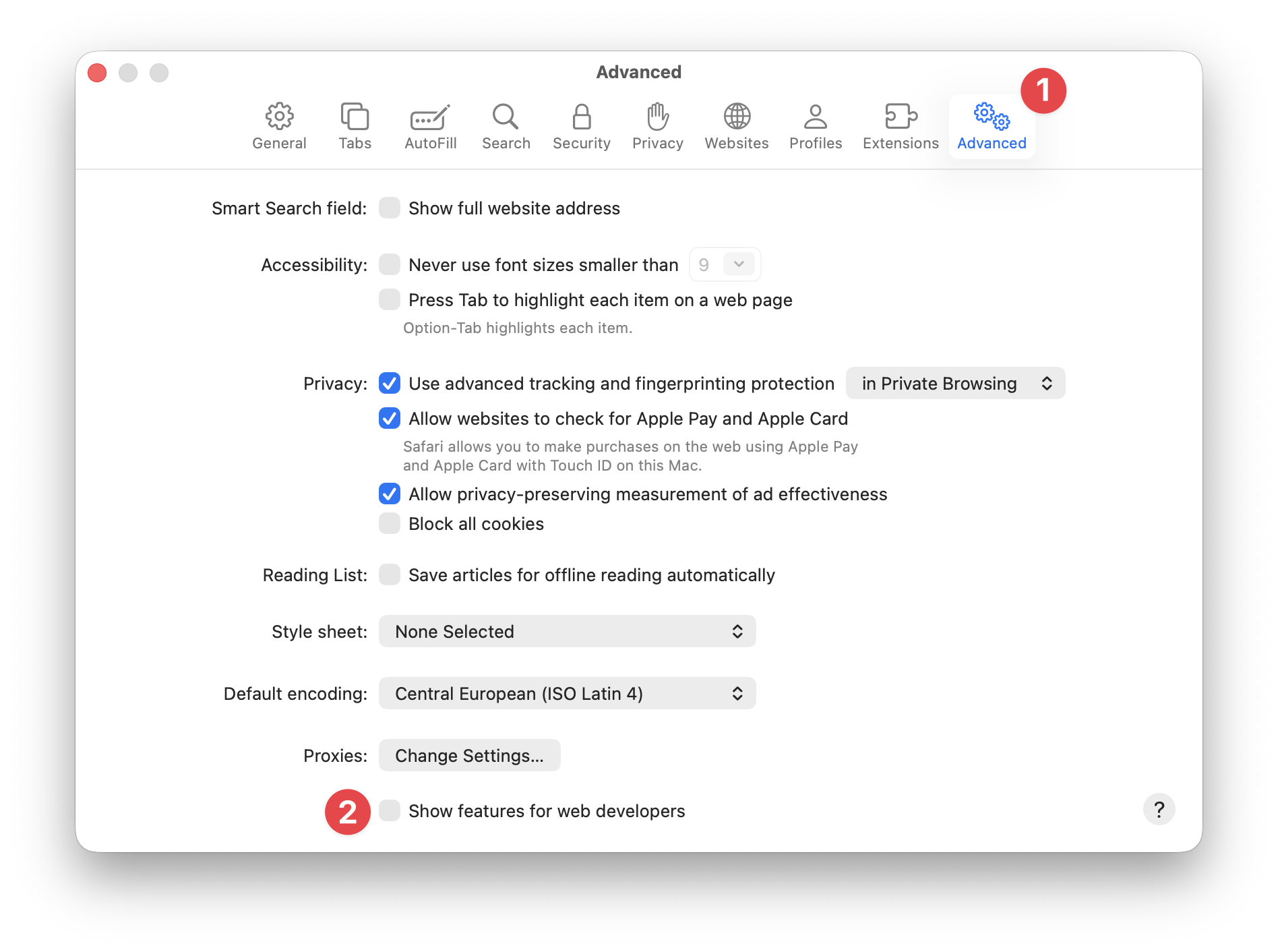
Before you can extract the token in Safari, you must enable developer tools.
- Open Safari Settings (⌘ + ,), navigate to the Advanced tab, and check "Show features for web developers" at the very bottom.
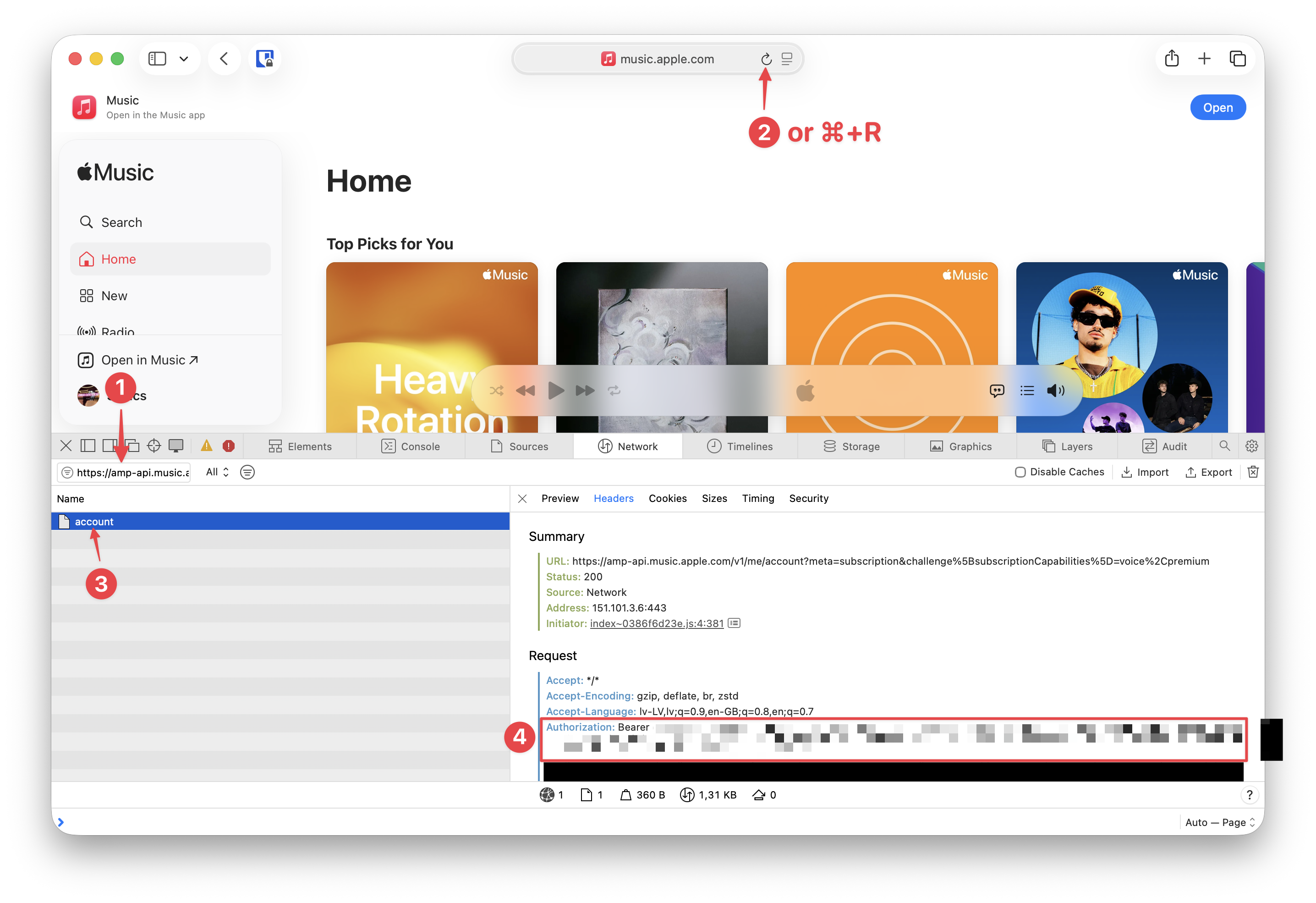
- Visit music.apple.com and log in.
- Open the Web Inspector (⌘+⌥+I or Develop > Show Web Inspector) and navigate to the Network tab.
- In the filter bar on the left side of the inspector, paste exactly:
https://amp-api.music.apple.com/v1/me/account(Label 1). - Reload the page (Label 2).
- Click the
accountrequest that appears in the Name list (Label 3). - In the details sidebar, look under the Request section for the
Authorizationheader. Copy the long string of text after theBearerprefix (Label 4).
Once you have your token, add it to your configuration file along with the origin header:
{
    "data": {
        "token": "eyJ0eXAiOiJKV1QiLCJhbGciOiJFUzI1NiIsIm...",
        "mediaUserToken": "your-media-user-token-here",
        "origin": "https://music.apple.com"
    }
}
When using a JWT extracted from the browser, Apple requires the request to match the domain it was issued to. You must include the origin field in your config as shown above.
Note: Browser-generated JWTs are valid for a maximum of 35 days and must be updated manually when they expire.
To generate JWTs automatically, you must be enrolled in the paid Apple Developer Program ($99/year) and create a MusicKit key. If you don't have an account, use the Browser Token (Free) tab instead.
To generate JWTs automatically and avoid manual token refreshes, you need an Apple Music API key:
- Go to the Apple Developer portal and create a MusicKit key.
- Download the
.p8file — this is your private key. - Note your Key ID and Team ID (found in your Apple Developer account Membership details).
Add these details to your config:
{
    "data": {
        "key": {
            "id": "2HPSNJZ88N",
            "teamId": "SN6YASW8G4",
            "p8": "-----BEGIN PRIVATE KEY-----\nMIGTAgEAMBMGByqGSM49AgEG...-----END PRIVATE KEY-----"
        },
        "mediaUserToken": "your-media-user-token-here"
    }
}
When pasting the contents of your .p8 file into JSON, make sure to replace physical line breaks with \n so it remains a valid, single-line JSON string.
How Multi-Scrobbler handles Apple Music quirks
Timestamp Estimation
The Apple Music API does not provide timestamps for when tracks were played. Multi-Scrobbler estimates play times by taking the current time and subtracting track durations backwards:
- The most recent track is assumed to have finished playing now.
- Each older track is estimated to have played
durationseconds before the previous one.
For the most accurate scrobble timestamps, it is highly recommended to keep the polling interval (APPLEMUSIC_INTERVAL) low (the default is 60 seconds).
Duplicate Play Recovery
The Apple Music history API strictly deduplicates tracks. Instead of showing the same song multiple times in a row, it simply bumps the re-played track back to the #1 spot and removes the older entry.
For example, if you listen to Song A → Song B, your history is [Song B, Song A]. If you then listen to Song A again, the API returns [Song A, Song B] (Song A was bumped to the top).
If Multi-Scrobbler polled when the top track was Song A, and polls again after it's bumped back to the top, the top track appears functionally unchanged. This usually confuses standard scrobblers into ignoring the update entirely. By default, MS correctly detects this "top-rebound" pattern, extracts the intermediate tracks that were squeezed in (Song B), and scrobbles Song A again as a re-listen.
Note: Because of this strict deduplication, "pure loops" (listening to Song A continuously on repeat without playing anything else in between) cannot be tracked. The history list never changes shape, so MS has no way of knowing it was played again.
If you ever experience false positives (tracks being scrobbled that you didn't actually re-listen to), you can disable this recovery behavior with "recoverUnchangedTopHistory": false in your config options or by setting the APPLEMUSIC_RECOVER_UNCHANGED_TOP_HISTORY=false env var.
Album name normalization
The Apple Music API appends - EP or - Single to the album name for EPs and singles. These suffixes are not part of the official names of the album and can cause issues when trying to scrobble or match metadata.
By default, Multi-Scrobbler strips these suffixes out so only the official name is used.
If you do not want this behavior it can be disabled with ENV APPLEMUSIC_NORMALIZE_ALBUM=false or File/AIO option "normalizeAlbum": false.
Stripping Suffix with User Stage
If you still want this stripping functionality but with more control over how it is applied you can use a User Stage.
Here is an example of creating a User Stage to only strip suffixes for a specific scrobble client:
Example
{
  // ...
  "transformers": [
    {
      "type": "user",
      "name": "AppleAlbumStip",
      "defaults": {
        "album": [
          "/ - (EP|Single)$/i"
        ]
      }
    }
  ]
}
{
  {
    "id": "myAppleMusic",
    "name": "My Apple Music",
    "data": {
      // ...
    },
    "options": {
      "normalizeAlbum": false
    }
  }
}
[
  {
    "name": "Foxx LFM Client",
    "id": "myLastFmClient",
    "enable": true,
    "configureAs": "client",
    "data": {
      "apiKey": "a89cba1569901a0671d5a9875fed4be1",
      "secret": "ec42e09d5ae0ee0f0816ca151008412a",
      "redirectUri": "http://localhost:9078/lastfm/callback"
    },
    "options": {
      "playTransform": {
        "preCompare": [
          {
            "type": "user",
            "name": "AppleAlbumStip",
          }
        ]
      }
    }
  }
]
Configuration Reference
- ENV
- File
- AIO
This is configuration for the ENV Config Type.
| Environment Variable | Required? | Default | Description |
|---|---|---|---|
APPLEMUSIC_ID | Yes | A unique ID for this source. | |
APPLEMUSIC_MEDIA_USER_TOKEN | Yes | The media-user-token extracted from the browser. | |
APPLEMUSIC_KEY_ID | No | Key ID from your MusicKit key. | |
APPLEMUSIC_TEAM_ID | No | Team ID from your Apple Developer account. | |
APPLEMUSIC_KEY_P8 | No | The contents of your MusicKit .p8 private key file. | |
APPLEMUSIC_TOKEN | No | The authentication JWT extracted from the browser. | |
APPLEMUSIC_INTERVAL | No | 60 | Polling interval in seconds. |
APPLEMUSIC_ORIGIN_HEADER | No | Origin header for API requests, e.g. https://music.apple.com. Required when using a browser token. | |
APPLEMUSIC_RECOVER_UNCHANGED_TOP_HISTORY | No | true | Apple Music deduplicates its history by bumping re-played tracks to the top. If you listen to Song A → Song B → Song A, the history changes from [A] to [A, B] (bumping A). MS detects this "top-rebound" to recover the intermediate play (B) and the re-listen (A). Disable this only if you see incorrect duplicate scrobbles. |
APPLEMUSIC_NORMALIZE_ALBUM | No | true | Strips extraneous - EP and - Single suffixes from album names |
APPLEMUSIC_NAME | No | A vanity name different than the ID. |
Config Structure
This displays the structure of the File Configuration for a applemusic type Source with all possible properties, their shape, and descriptions/types. Use this to understand how to write a valid config.
Config Example
This displays an example config file of a applemusic Source File Configuration that adheres to the shown Config Structure.
- text mode lets you edit the JSON directly.
- tree mode gives you a guided point-and-click editing experience that always keeps the JSON syntax valid.
Both modes validate that the configuraion is correct. Any errors show up as squiggly lines.
After you finish editing, switch to text and then copy all text to get a completed config.
Config Example Mobile Experience
This displays an example config file of a applemusic Source File Configuration that adheres to the shown Config Structure.
The example config file editor is meant for a larger screen experience so only the read-only example is shown. Please use this site on a tablet/laptop/desktop to enable file editor features.
[
  {
    "id": "myAppleMusic",
    "name": "My Apple Music",
    "enable": true,
    "clients": [],
    "data": {
      "key": {
        "id": "2HPSNJZ88N",
        "teamId": "SN6YASW8G4",
        "p8": "-----BEGIN PRIVATE KEY-----\nMIGTAgEAMBMGByqGSM49AgEG...-----END PRIVATE KEY-----"
      },
      "token": "your-jwt-token-here",
      "mediaUserToken": "your-media-user-token-here",
      "origin": "https://music.apple.com",
      "interval": 60
    },
    "options": {
      "logDiff": true,
      "recoverUnchangedTopHistory": true,
      "normalizeAlbum": true
    }
  }
]
Config Structure
This displays the structure of the all-in-one (config.json) configuration with all possible properties, their shape, and descriptions/types. Use this to understand how to write a valid config.
Select the applemusic type from the respective sources node below, then expand it.
Config Example
This displays an example config file of a all-in-one (config.json) configuration that includes a applemusic Source that adheres to the shown Config Structure.
- text mode lets you edit the JSON directly.
- tree mode gives you a guided point-and-click editing experience that always keeps the JSON syntax valid.
Both modes validate that the configuraion is correct. Any errors show up as squiggly lines.
After you finish editing, switch to text and then copy all text to get a completed config.
Config Example Mobile Experience
This displays an example config file of a all-in-one (config.json) configuration that includes a applemusic Source that adheres to the shown Config Structure.
The example config file editor is meant for a larger screen experience so only the read-only example is shown. Please use this site on a tablet/laptop/desktop to enable file editor features.
{
  "sources": [
    {
      "id": "myAppleMusic",
      "name": "My Apple Music",
      "enable": true,
      "clients": [],
      "data": {
        "key": {
          "id": "2HPSNJZ88N",
          "teamId": "SN6YASW8G4",
          "p8": "-----BEGIN PRIVATE KEY-----\nMIGTAgEAMBMGByqGSM49AgEG...-----END PRIVATE KEY-----"
        },
        "token": "your-jwt-token-here",
        "mediaUserToken": "your-media-user-token-here",
        "origin": "https://music.apple.com",
        "interval": 60
      },
      "options": {
        "logDiff": true,
        "recoverUnchangedTopHistory": true,
        "normalizeAlbum": true
      },
      "type": "applemusic"
    }
  ]
}