Overview
A Source is a data source that contains information about tracks you are playing like a music player or platform. Examples are Spotify, Jellyfin, Plex, Youtube Music, Airsonic, etc...
Sources
Features
Types of Sources
The Sources implemented in multi-scrobbler can be broken down into two categories.
By Communication Method
How does this Source get data from the service/application?
- Active
- Ingress
The MS Source makes network requests to the service which returns a response with data MS can use to monitor listening activity or scrobbles.
The MS Source waits for the service/application to send data to multi-scrobbler.
These types of Sources require that multi-scrobbler is accessible to the service, generally through an open port or reverse proxy.
By Data Source of Truth
How does MS determine if/when a song has been played and is scrobbable?
- Listening Activity
- Listening History
These Sources expose some kind of real-time listening data for users, like:
- player state (paused, stopped, playing)
- player position (1:50/2:40)
- current listened duration (Track A playing for 1m:20s)
For theses Sources multi-scrobbler keeps track of the real-time state of your activity and scrobbles a track after it meets certain scrobble thresholds.
Some Sources expose their own version of "this track has been scrobbled."
- Listenbrainz, Koito, and Last.fm are all scrobble services that have "definitive" histories of scrobbled tracks.
For these Sources multi-scrobbler monitors the listening history data and scrobbles when it sees a new entry in the list.
Multi-Device/User
Some Sources report which User is playing a track and/or on what device the track is being played. These Sources can be filtered with configuration to only monitor activity for specific devices or users.
Limiting Scrobble Destination
To limit which Clients a Source will scrobble to use the clients property in a Source's File/AIO configuration to specify the id property of the Clients that it should scrobble to:
{
    "name": "MyJellyfin",
    "clients": ["myMaloja","koitoA","listenbrainzFoo"]
    "data": {
        // ...
    },
}
If clients is empty ("clients": []) or is omitted then the default is for the Source to scrobble to all configured Clients.
When Is Activity Scrobbled?
From Listening History
For Listening History Source-Of-Truth based Sources, like Listenbrainz and Last.fm, newely discovered history is immediately forwarded to relevant Clients.
From Ingress
For Ingress communication based Sources, like Listenbrainz (Endpoint) and Webscrobbler, the client sending data to Multi-Scrobbler is what determines when activity is scrobbled. This means that it up to the behavior and implementation of whatever application you point at these Source endpoints: when the client sends "this is scrobbled", MS immediately forwards it to relevant Clients.
From Listening Activity
For Sources that use Active communication with Listening Activity as the Source-Of-Truth -- like Jellyfin, Plex, Spotify, Subsonic, etc... -- Multi-Scrobbler waits until the track changes or the active player becomes stale/disappears before determining if the activity should be scrobbled.
This allows MS to record how long you listened to the track for as well as more accurately determine if Scrobble Thresholds have been met.
Scrobble Thresholds
A Source that monitors Listening Activity uses one of two metrics to determine if a Song is scrobbable based on your listening:
- percent of track listened to (50% or more)
- or amount of time (duration) track was listened to (4 minutes or more)
These default values are based on last.fm's scrobble guidance.
These values can be customized in the options of Source's file or aio config:
{
  "data": {
      // ...
  },
  "options": {
      "scrobbleThresholds": {
          "duration": 40, // scrobbable if listened to for 40 seconds or more
          "percent": 20   // scrobbable if listened to for 20% or more of the track's length
      }
  }
}
These can also be configured globally for all Sources using ENVs:
SOURCE_SCROBBLE_DURATION=40
SOURCE_SCROBBLE_PERCENT=20
Monitoring Activity
Monitoring activity for a Source/Client can be explicitly toggled on/off from each Source/Client respective details page by choosing Ignore or Monitor from the Status dropdown.
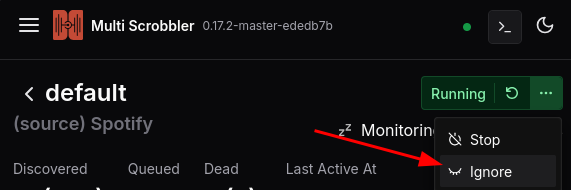
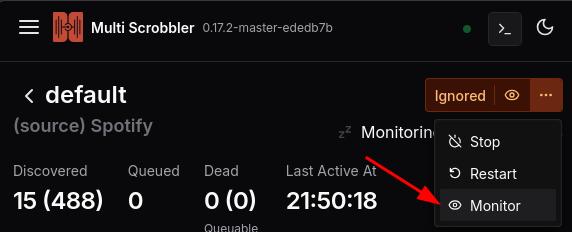
When a Source/Client is not monitored it will still show activity (like an active Player) but the resulting Play will marked as Discarded.
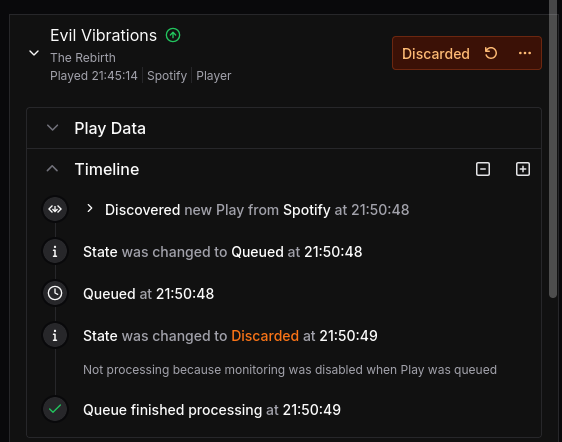
Discarded Plays are not forwarded from Sources -> Clients (Discovered) and for Clients are not Scrobbled to downstream scrobble clients.
If you do want to Discover/Scrobble a discarded Play then click the Retry icon on the Play's status to force it to be processed.
Default Monitoring and Activity Detection
All Sources/Clients have monitoring enabled automatically (except those explicitly documented as requiring monitoring configuration).
You can manually define whether a Source/Client starts, or is created, with monitoring enabled automatically by adding the following value to a Source/Client's options in file or aio config:
{
    "data": {
        // ...
    },
    "options": {
        // set to true to always monitor automatically
        // set to false to never monitor automatically
        "autoMonitor": true
    }
}